Haven't changed anything yet? Use part 1. It takes a minute in the app and your plug moves over by itself.
Already changed it, and the app says your plug is offline? Skip to part 2.
Part 1: Before you change your WiFi
Give DropStop the new network first. We save it on your plug as a backup, and nothing changes until your old network stops working. When it does, the plug switches to the new one on its own.
Finding Plug settings
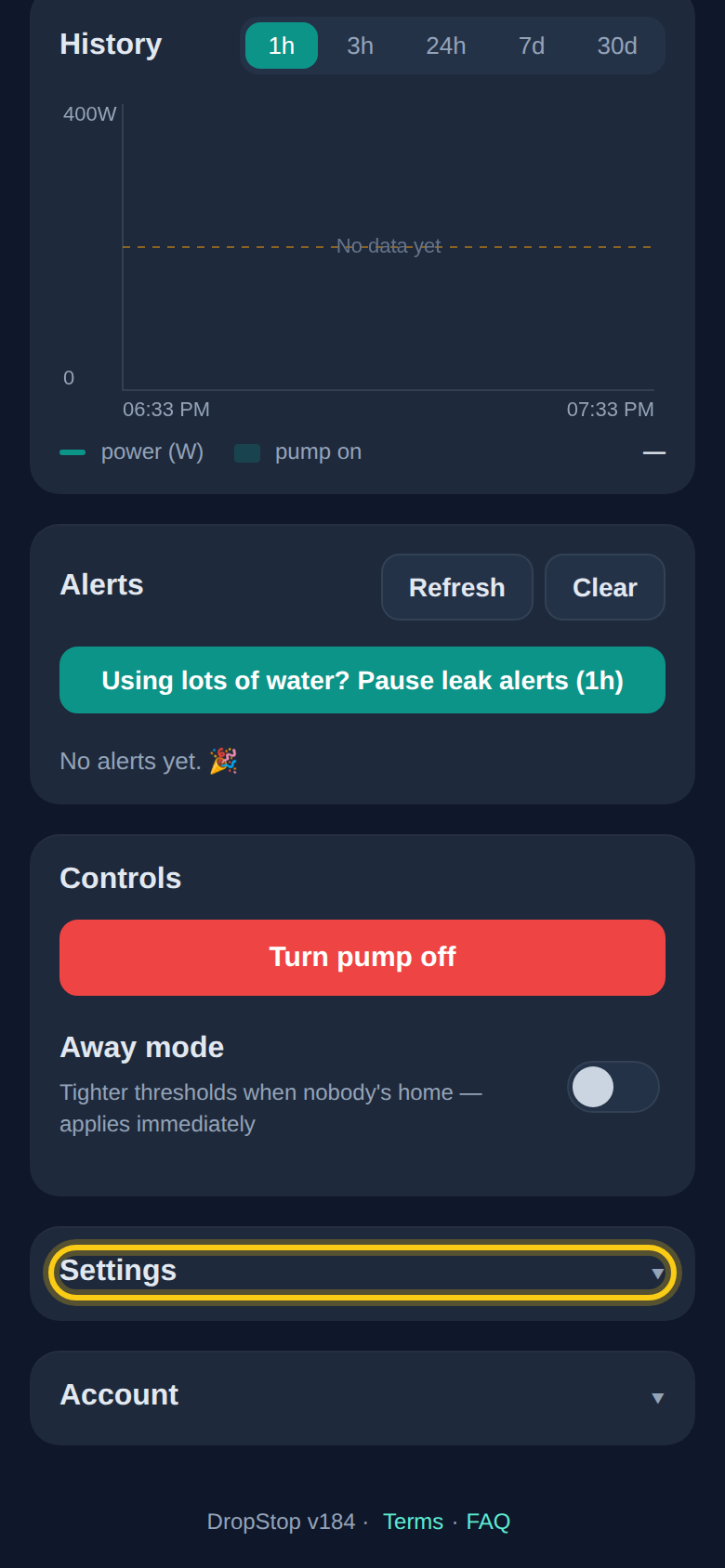
It's tucked away at the bottom of the dashboard, inside the Settings panel.
-
1
Make sure your pump shows online
Do this while your current WiFi is still working. The plug has to be online to receive the new details. If it isn't, the app tells you and nothing is changed.
-
2
Open Plug settings
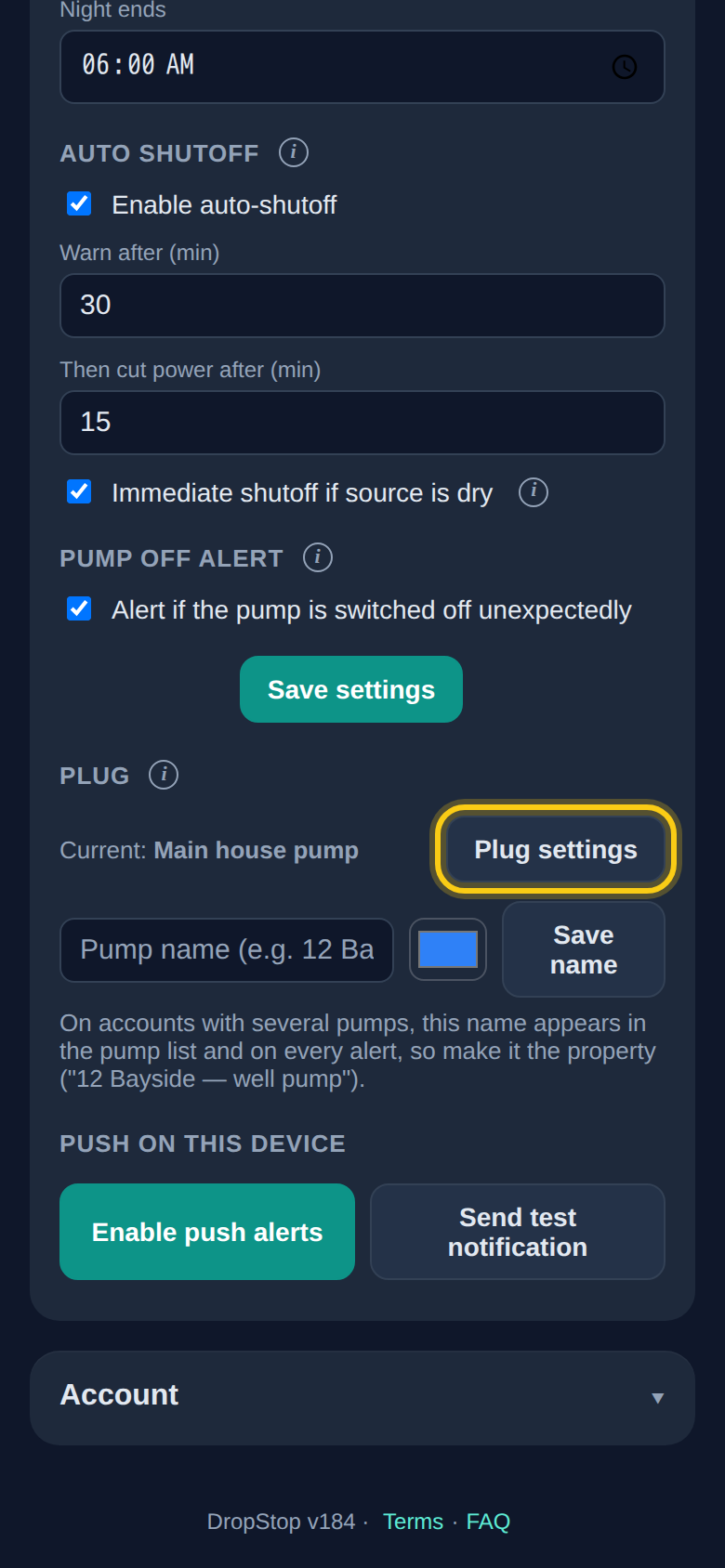
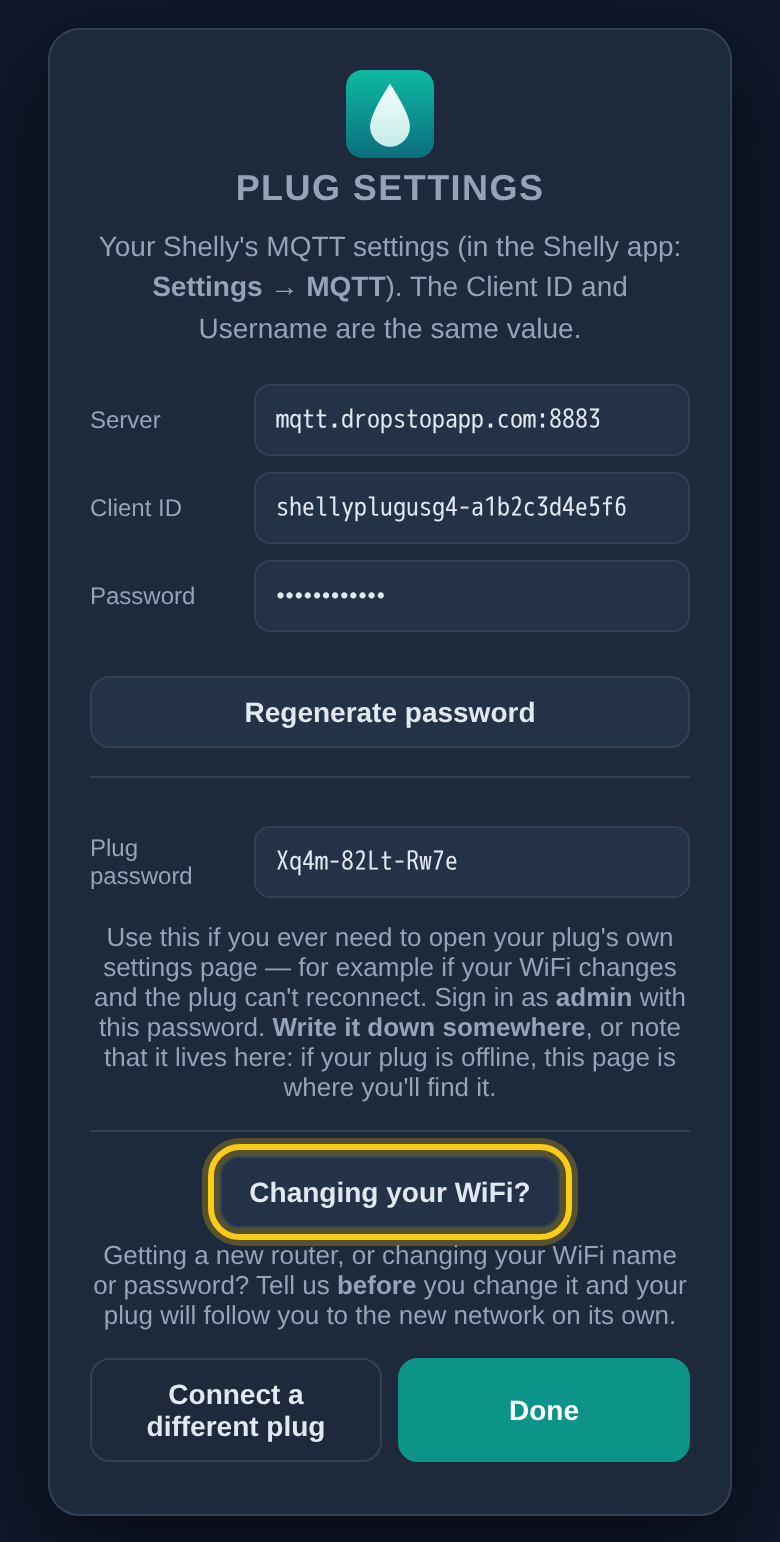
In the DropStop app, scroll to the bottom of the dashboard and tap Settings to open it. Near the end, under Plug, tap Plug settings, then Changing your WiFi? If you have several pumps, pick the right one at the top of the app first.
-
3
Enter the new network and send it
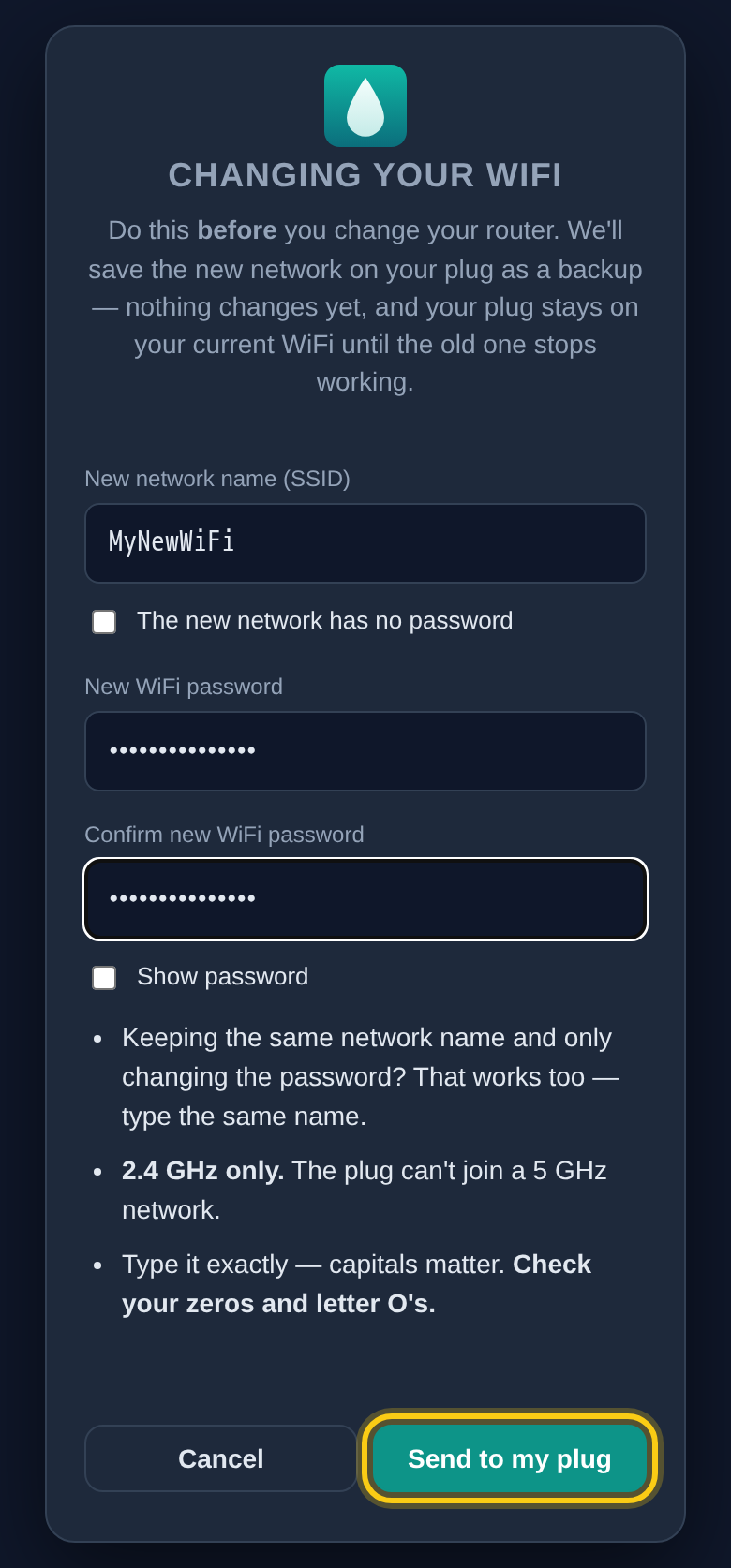
Type the new network name and password exactly. Capitals matter, and zeros and letter O's look alike, so check them. Only changing the password and keeping the same name? Type the same name. Then tap Send to my plug. The plug stays on your current WiFi for now.
-
4
Change your router whenever you're ready
There's no rush: the backup waits on the plug until you need it.
What happens next depends on what you changed
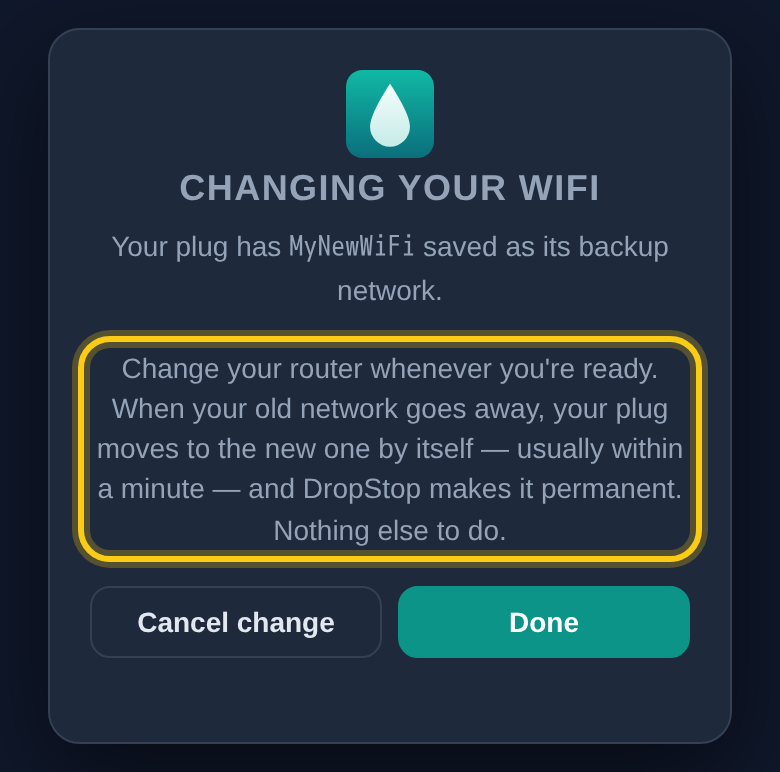
- A new network name (a new router, for example): when your old network goes away, the plug moves to the new one, usually within a minute, and DropStop finishes the switch by itself. There's nothing else to do.
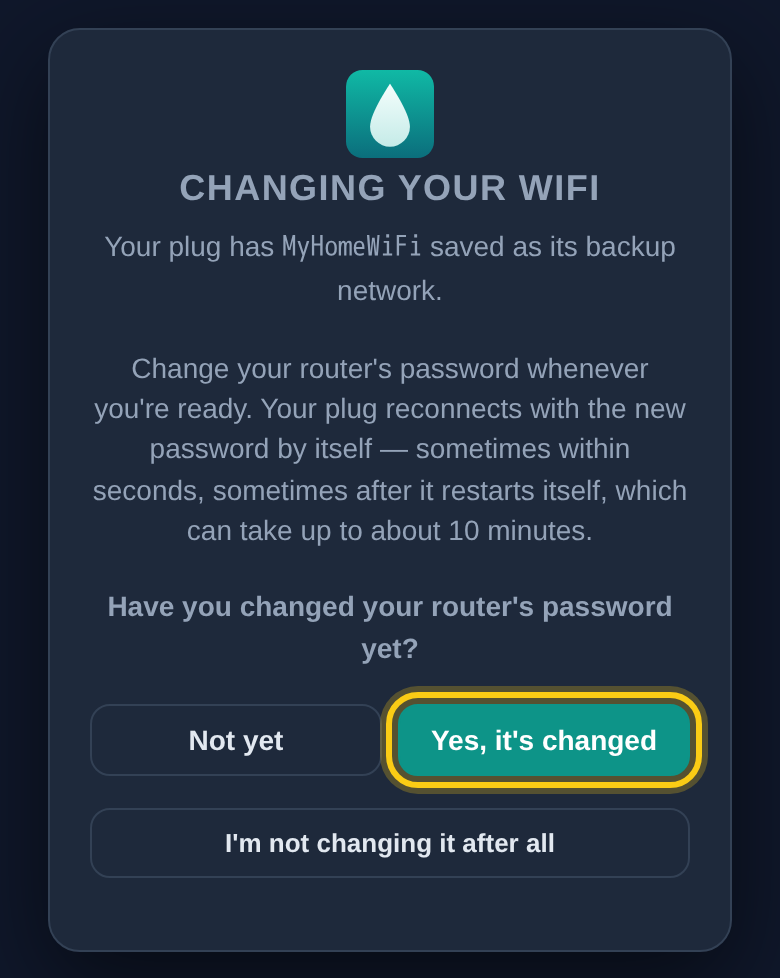
- The same network name with a new password: the plug reconnects with the new password by itself. Sometimes that takes seconds; sometimes the plug restarts itself first, which can take up to about ten minutes. When your pump shows online again, open Changing your WiFi? and tap Yes, it's changed.
More than one pump? Each pump's plug is set up separately. Pick the pump at the top of the app first, then repeat these steps for every pump at the property whose WiFi is changing.
Changed your mind? Open Changing your WiFi? again and tap Cancel change (or I'm not changing it after all). Only do that if your router still has its old settings.
Part 2: Already changed it, and the plug is offline
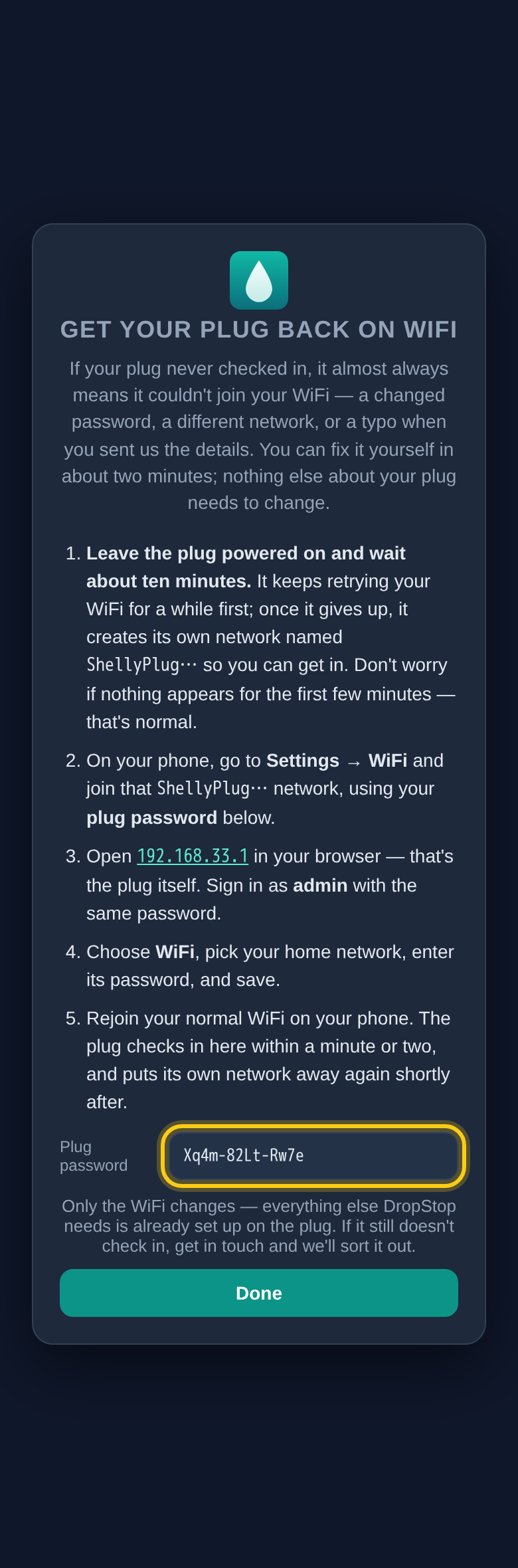
If the network's name or password changed before the plug knew about it, the plug can't reconnect and the app shows it offline. Your pump keeps working normally. You can give the plug the new details yourself through its own recovery network. It takes a few minutes.
-
1
Get your plug password
In the DropStop app, tap What do I do? on the offline banner. Your plug password is at the bottom of that screen. It's also in Plug settings: at the bottom of the dashboard, open Settings, then tap Plug settings.
-
2
Leave the plug on and wait about ten minutes
The plug keeps trying your old network for a while. When it gives up, it makes its own WiFi network called ShellyPlug… so you can get in. It's normal for nothing to appear for the first few minutes.
-
3
Stand next to the plug and join its network
The plug's own network is weak, so stand right beside it. On your phone, open Settings, then WiFi, and join the ShellyPlug… network using your plug password.
-
4
Open the plug's settings page
In your phone's browser, go to http://192.168.33.1 (the link only works while your phone is on the plug's network). Sign in with your plug password. If it asks for a user name, it's admin.
-
5
Enter your new WiFi
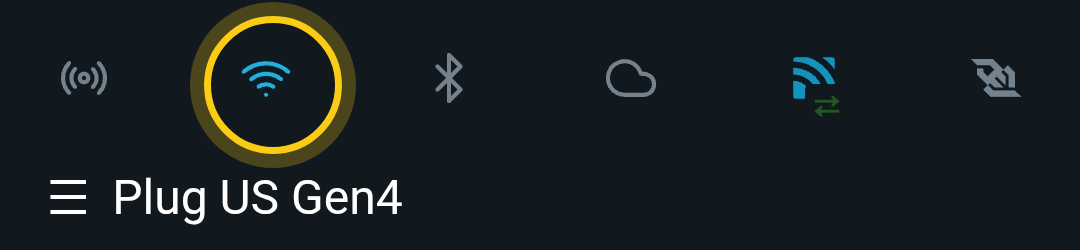
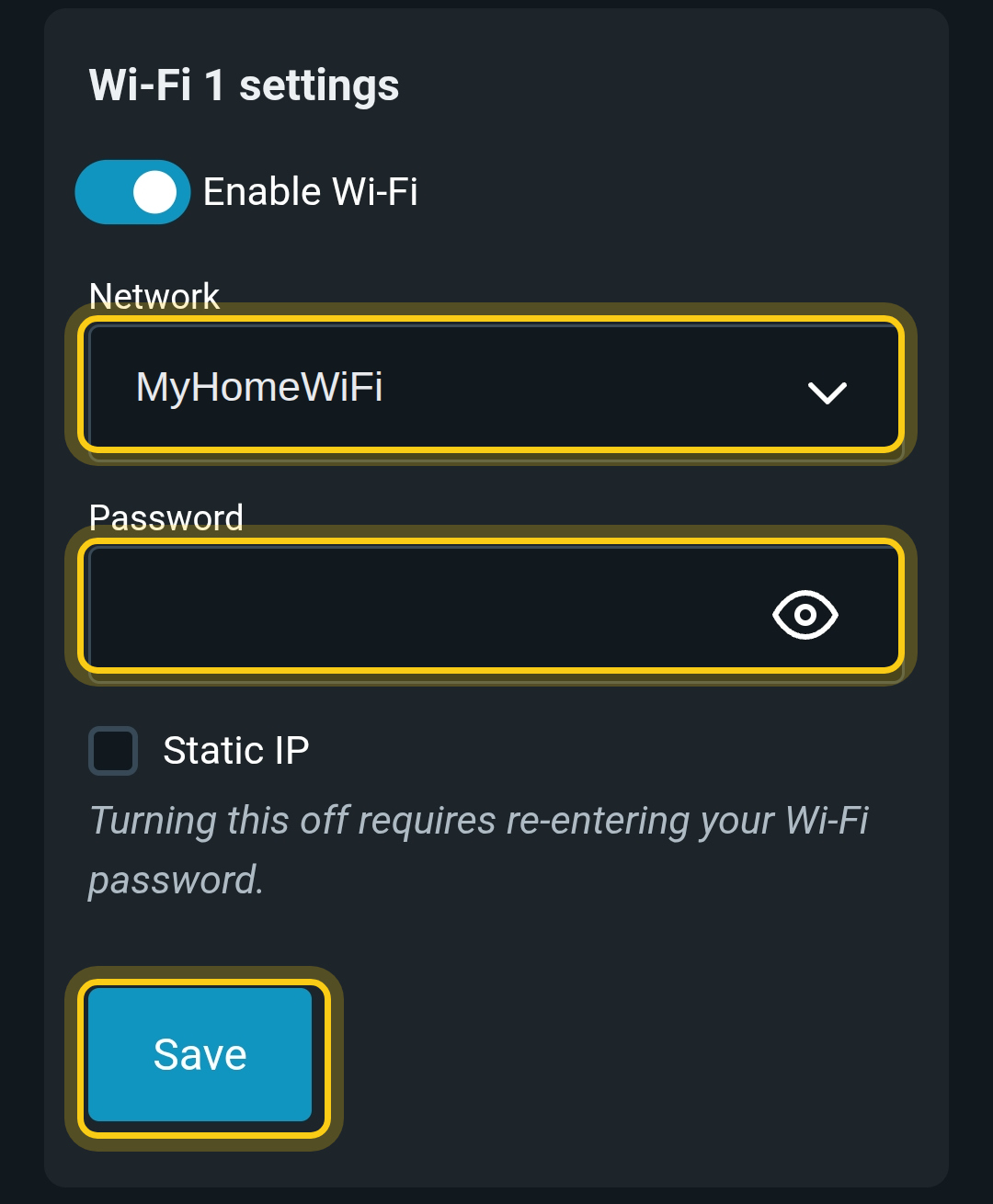
Tap the WiFi icon, the second icon in the row along the top (curved bars, like the WiFi symbol on your phone). Scroll to Wi-Fi 1 settings, choose your network from the Network list, type its password, and tap Save. Leave Wi-Fi 2 as it is. If your router has separate 2.4 GHz and 5 GHz networks, pick the 2.4 GHz one.
-
6
Rejoin your own WiFi
Put your phone back on your normal network. Within a minute or two the app shows online again, and the plug switches its own network off.
Write your plug password down now. You only need it when something has gone wrong, which is the worst time to go looking for it. Find it in the app at the bottom of the dashboard, under Settings, then Plug settings, and keep a copy somewhere safe.
Stuck? Get in touch with us and we'll sort it out.