Do this on every phone that should get alerts. Notifications are switched on phone by phone. If you and your partner both want them, both phones need these steps. To add someone else, like a tenant or a neighbour, see Can someone else get the alerts too?
Step by step
-
1
Put DropStop on your Home Screen
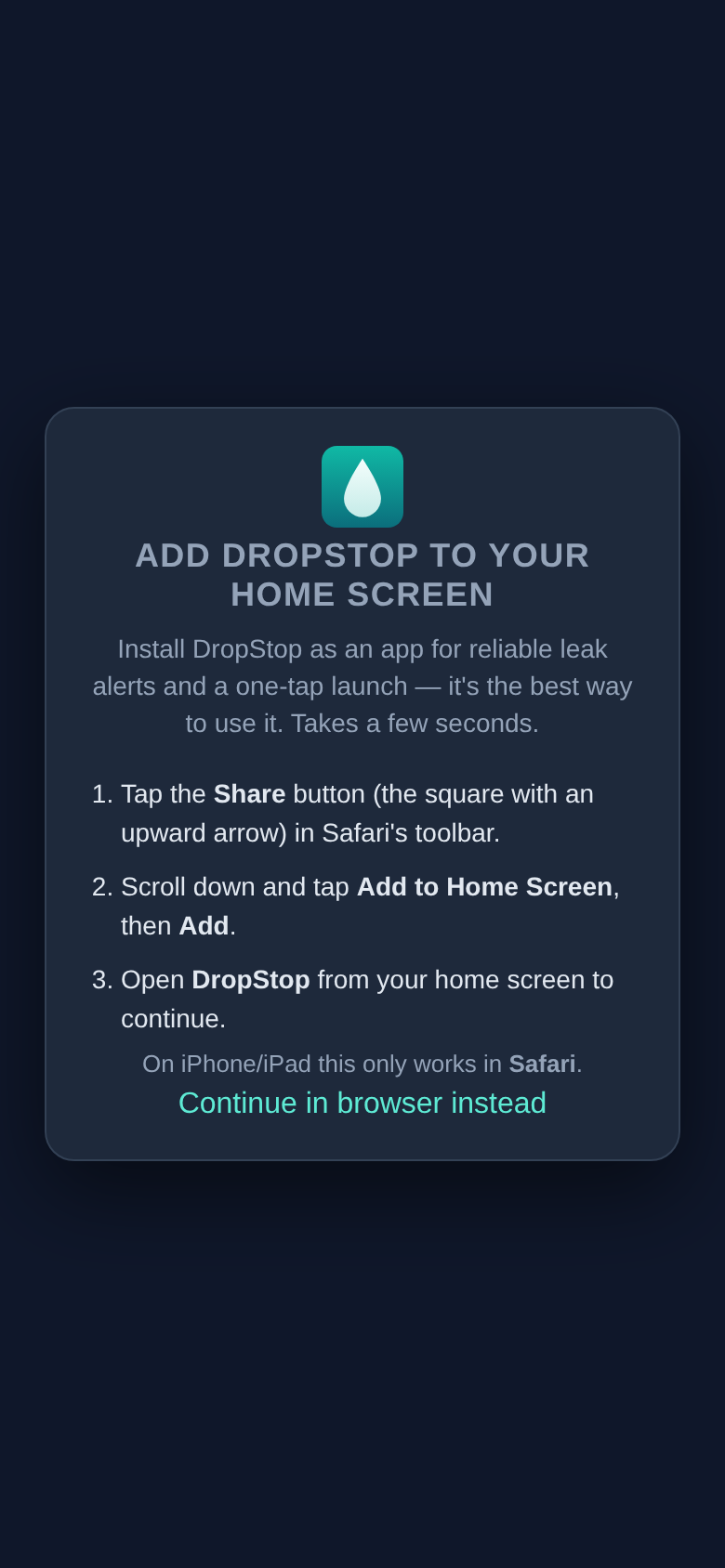
iPhone: open app.dropstopapp.com in Safari. Tap the Share button (the square with an arrow pointing up), scroll down, tap Add to Home Screen, then Add. This step matters: iPhones only allow notifications from DropStop when it's opened from the Home Screen, not from a Safari tab.
Android: open the same address in Chrome and tap Install app when DropStop offers it.
-
2
Open it from the Home Screen and sign in
Tap the new DropStop icon and sign in with the same Google account you used to buy.
-
3
Tap Enable, then Allow
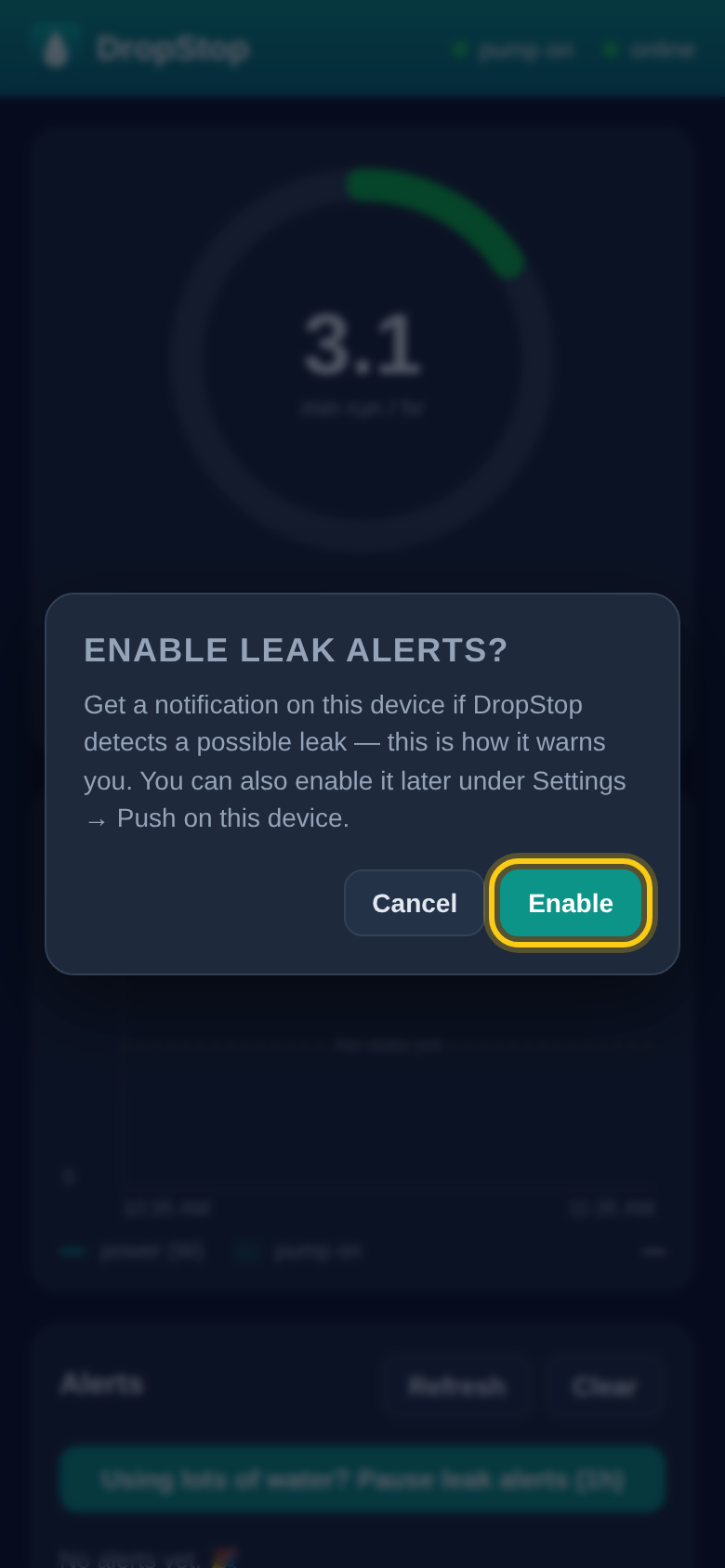
DropStop asks Enable leak alerts? Tap Enable. Your phone then asks whether DropStop may send notifications. Tap Allow.
-
4
Send yourself a test
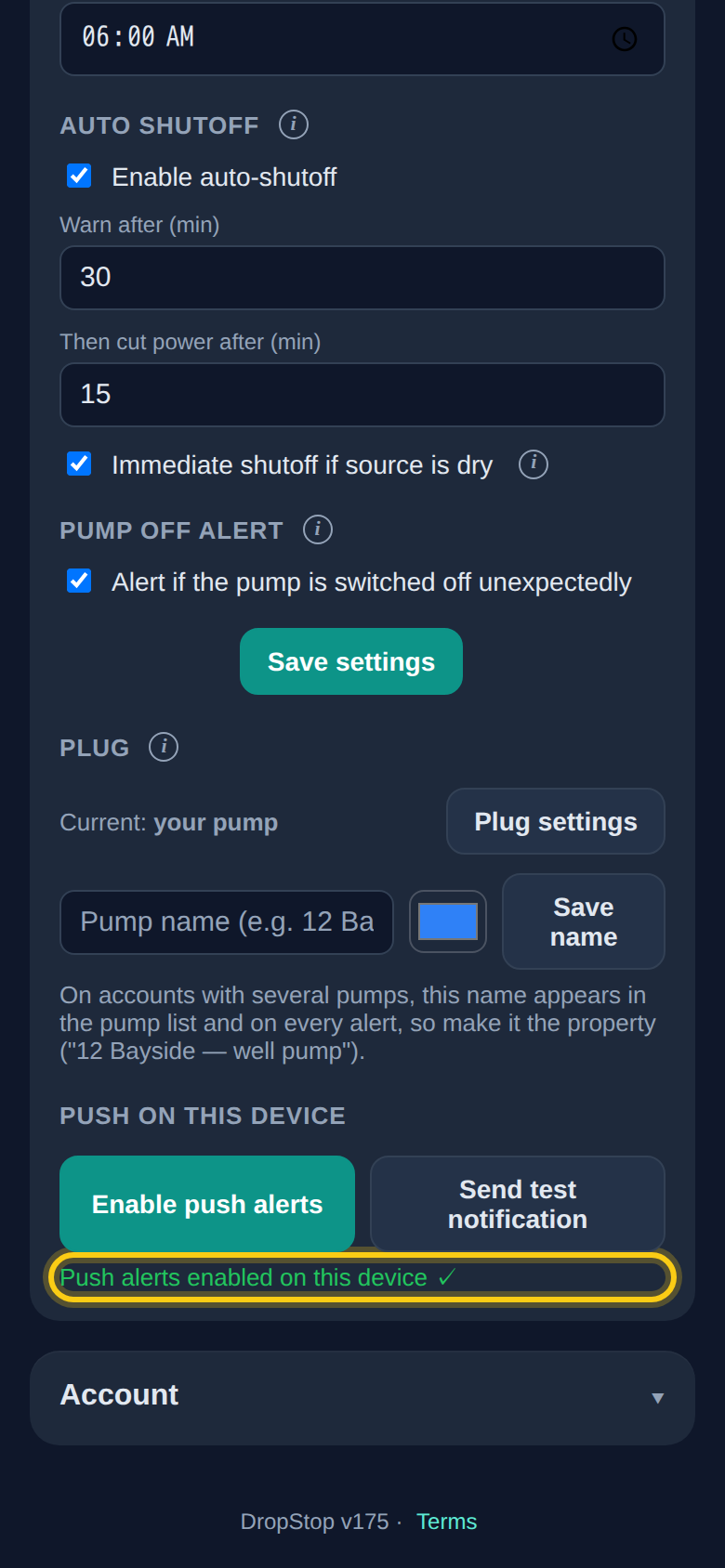
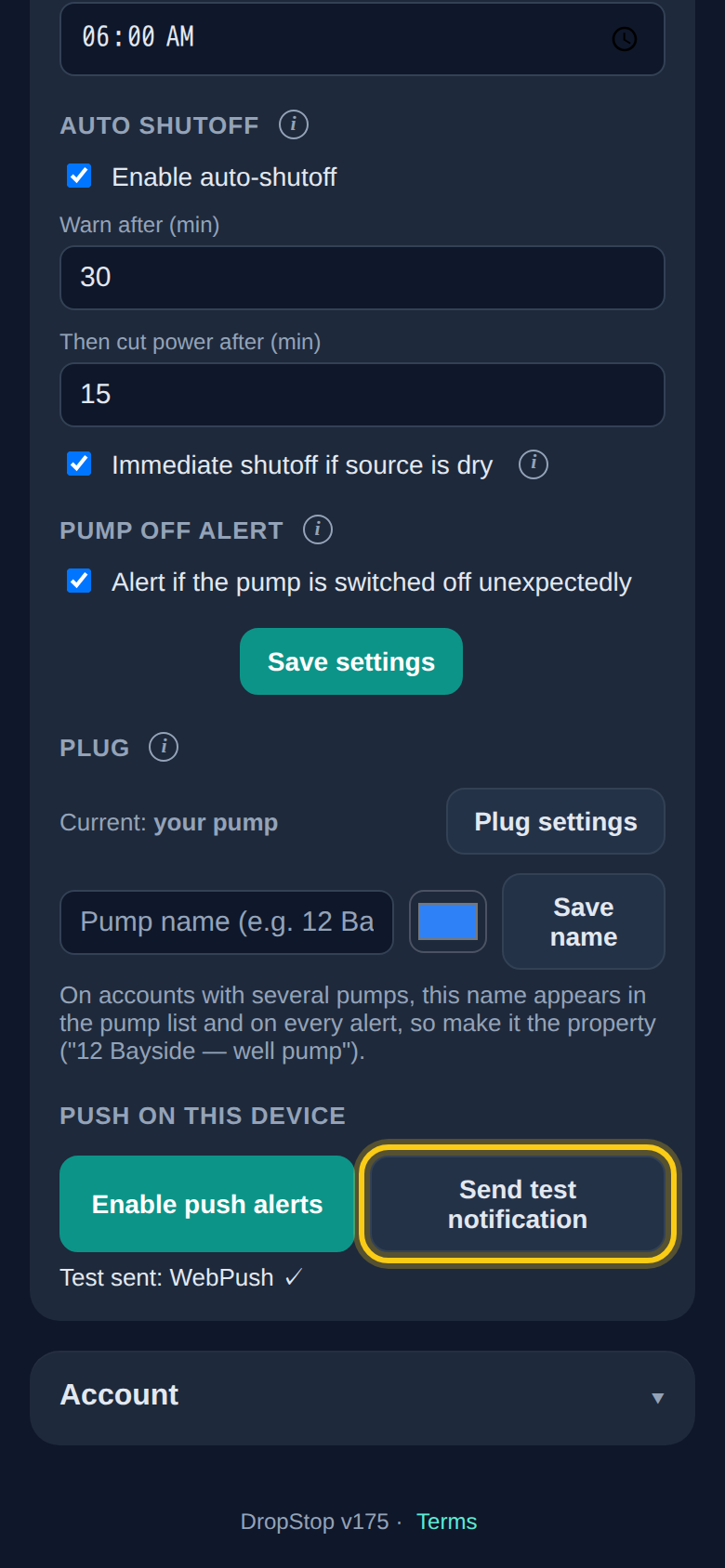
Scroll to the bottom of the app, open Settings, and find Push on this device. Tap Send test notification. Within a few seconds your phone shows DropStop test: "If you can read this, notifications are working."
If the test doesn't arrive
- "Alerts can't reach this device." You've opened DropStop in a browser tab. On an iPhone, add it to your Home Screen (step 1) and open it from there.
- "Notifications are blocked for DropStop on this device." You tapped Don't Allow at some point. Open your phone's Settings, then Notifications, find DropStop and turn notifications on. Then go back to step 4.
- Do Not Disturb, Sleep or another Focus is on. These can silence DropStop like any other app. If you use them at night, add DropStop to the apps allowed to notify you, so a leak at 3am still gets through.
- You reinstalled the app, or got a new phone. Open DropStop from the Home Screen and go through steps 3 and 4 again.
What you'll be told, and when
Leak alerts, shutoff warnings and empty water source alerts come straight away, day or night. Notices you can't do anything about in the dark, like "your pump monitor is offline" or "it's back online", wait overnight and arrive as one summary in the morning.